
1. What is TrailQ?
TrailQ helps you choose, walk and look back on walks. It works in three phases, chosen at the top:
- Explore: which walk fits what I want? Map, list, bubble and heatmap, filters, preferences, labels.
- Go: on the way, with GPS, as a simulation (Replay) or on the cross trainer. Elevation profile, schedule, what lies ahead.
- Analyse: look back on your sessions and compare them, goals, monthly totals.
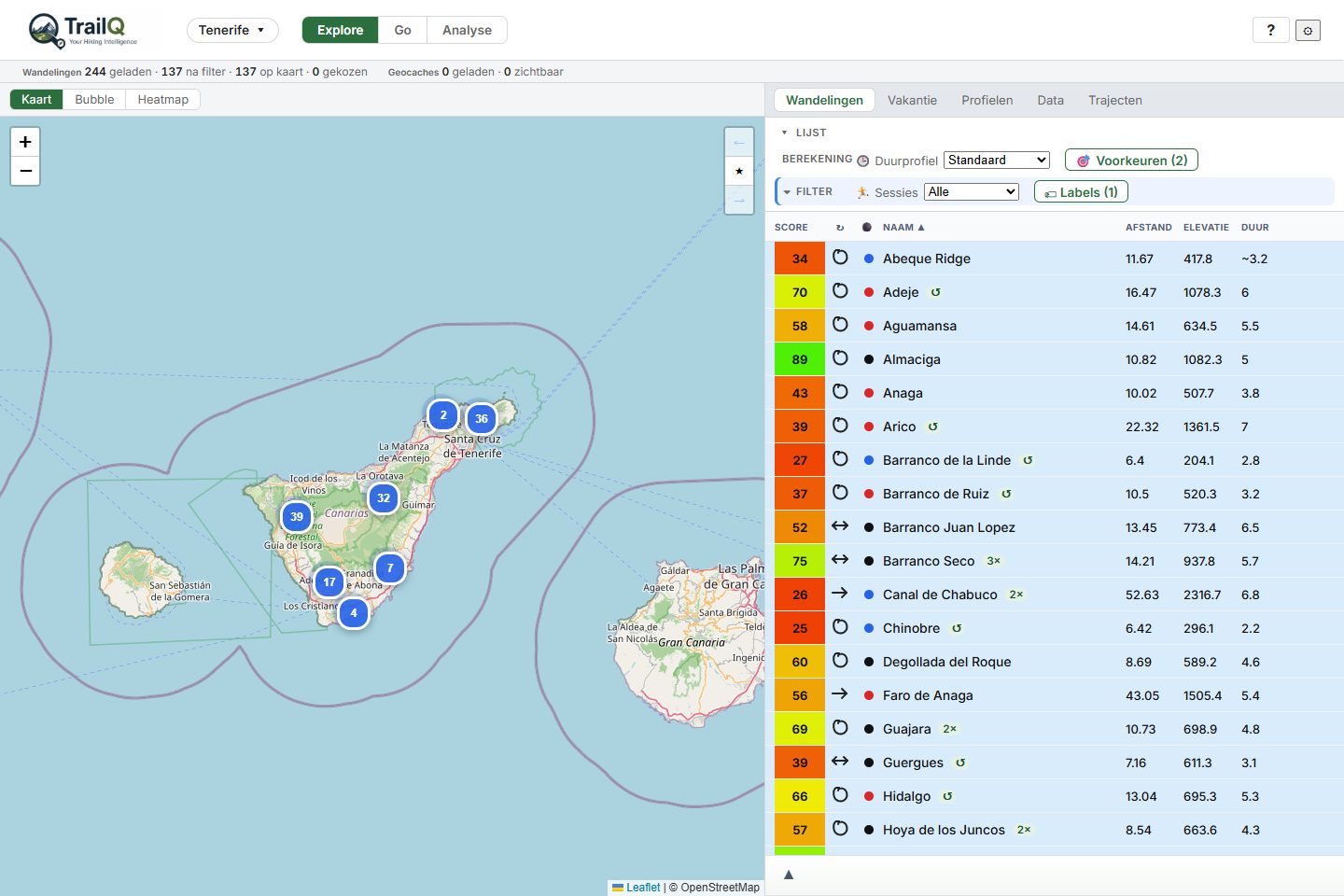
TrailQ runs as a small web server on your own laptop; you use it in your browser. Your walks stay on your own disk.
2. Installing and starting on a Windows laptop
What you need
- The TrailQ zip (
trailq-0.5.zip). - Python 3.12 or newer from python.org. Tick Add python.exe to PATH during the installation.
- Internet while installing (to fetch the Python packages) and while importing (TrailQ looks up the country and region of every walk). After that TrailQ also works offline, except for the map background.
Step by step
- Unpack the zip to a fixed place, for example
C:\TrailQ. - In that folder make a text file
trailq_token.txtwith a password of your own on one line, for examplemypassword. You need it when importing walks. - Double-click
install_trailq.batonce. It makes a Python environment of its own (folder.venv) and installs the packages needed; it takes a few minutes. At the end it says Klaar (done). - Double-click
start_trailq.bat.- The server starts in a black window and your browser opens http://localhost:5050.
- If Windows asks for access through the firewall: Private networks is enough.
- Stopping: close the server's black window. From then on you simply start again with
start_trailq.bat.
Settings in config.json (optional)
The config.json that comes with TrailQ works straight away; all folders are in the TrailQ folder. If you want something else, open the file in Notepad:
| Key | Meaning | Default |
|---|---|---|
dataRoot | Where TrailQ keeps datasets, workspaces, sessions and profiles. | data |
gpxRoot | Where imported GPX files go. | data/gpx |
photoRoot | The main folder of your photos, if you want to see photos with walks (for example D:/Photos). Use forward slashes /. | photos |
vault | Only for importing from Obsidian. | empty |
After a change: close the server and run start_trailq.bat again.
trailq_token.txt only protects importing and writing. On your own laptop that is enough; do not open TrailQ to the internet.3. Use case 1: loading and filtering a new dataset
You have a folder with GPX files, for example from a walking guide or your own recordings, and want to see and search them in TrailQ.
Importing
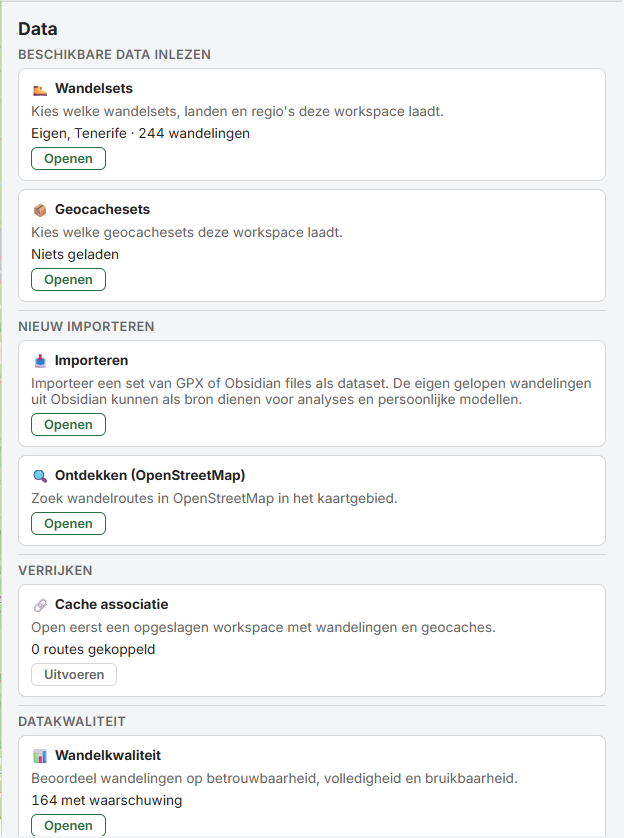
- Choose Explore at the top and Data below it.
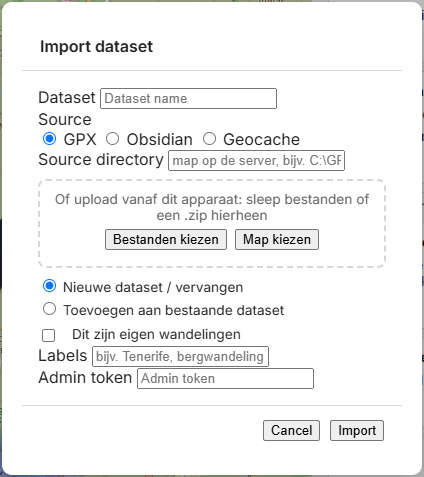
- Click Import. Fill in:
- Dataset: a short name, for example
Dolomites. - Source: GPX (or Obsidian for an Obsidian vault, Geocache for a geocache file).
- Where are the files? Choose one of the two:
- Upload from the device on which you use TrailQ: Choose files (several at once, also on the phone), Choose folder (a whole folder with subfolders, only on the computer), or drag files or a
.ziponto the box. With Obsidian only the notes and GPX files go along; photos stay where they are. - Source directory: a folder on the computer where the TrailQ server runs, for example
C:\Users\Jan\Documents\GPX\Dolomites. Subfolders are included.
- Upload from the device on which you use TrailQ: Choose files (several at once, also on the phone), Choose folder (a whole folder with subfolders, only on the computer), or drag files or a
- New dataset / replace or Add to an existing dataset: choose add when you want to put single walks (for example from your phone) into an existing dataset. A walk with the same GPX file is then updated, the rest stays.
- Labels (optional): for example
Dolomites, mountain walk. All imported walks get these labels. - Admin token: the password from
trailq_token.txt.
- Dataset: a short name, for example
- Click Import. You see the progress per walk. Afterwards TrailQ shows a summary: new and changed walks (with what changed), the number unchanged, when replacing the walks that are gone, notes without GPX (those are not included) and what failed. Click OK; the dataset is then on the map.
Choosing what is loaded
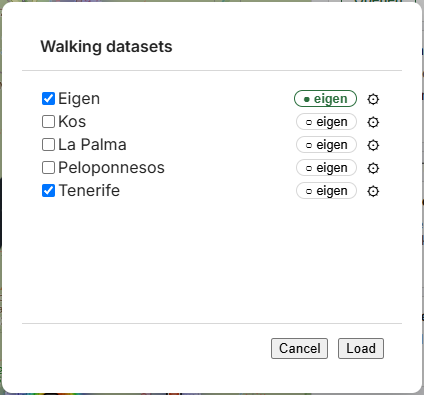
- In Data click Walk sets. Tick the datasets you want to see.
- With ⚙ behind a dataset you choose countries, regions and types (walk, bike, …). That way you load only the part you need.
- With ○ own you mark a dataset as your own walks (walked by you). They show as a circle on the map and in the bubble, all others as a square. An Obsidian import is own automatically; with a GPX import you tick These are my own walks.
Filtering and viewing
- Map: the list shows the walks that start in the map view. Zoom and pan to search. At the top right ← → go to the previous and next map view, ★ remembers the current one, and ⌂ goes back to how the workspace opened: no walk selected and the history empty. The same buttons work in the bubble.
- Filter row above the list. It is folded into one line ▸ List with a summary of what is set; an active filter shows in blue. Tap it to unfold it. Open or closed is remembered per device. Unfolded there are two rows:
- Calculation, changes the figures and the score in the list, no walk drops out: 🕒 Duration profile (with which pace the duration is estimated), 🎯 Preferences (your wish for distance, ascent and duration, how strongly your rating counts and whether you want new or known walks; see use case 2) and 📦 Caches along the route (how widely geocaches count with a route; only after a cache association).
- Filter, decides which walks are in the list: 🏃 Sessions (only walked, done on the cross trainer, or never done) and 🏷 Labels (+ the walk must have the label, − it must not).
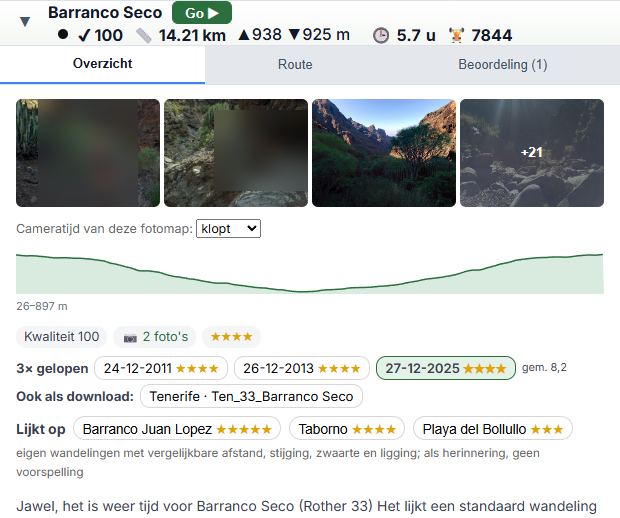
- The same route: if you walked a route more often, or it is also in a downloaded set, it is in the list once, with a badge behind the name: 3× (walked that often), ✓ (a downloaded route you have already walked) or ↺ (the route is also in another set). In Details → Overview you see every time with date and stars, the average review and the downloads; click a date to show that time. The photos of all times are also in the strip, on the map and on the elevation profile; those of other times a little lighter, with their date. A downloaded route you have walked gets your stars and words. TrailQ recognises the same route by its track, not by its name; that happens after every import.
- Sorting: click a column header in the list; with Shift+click you sort on a second column.
- Details: click a walk; Details opens at once, on the tab you used last. Overview is for choosing: photos (tap for the viewer; browse with ◀ ▶ or the arrow keys, close with Esc; if the camera was on another time, for example Dutch time on Tenerife, set the Camera time of this photo folder below the photos, for example −1 h), a small elevation profile, quality, similar to and the whole description (scroll down); the tab always starts at the top. Route shows the elevation profile with your events and stretches. Rating is what it means to you: experience, labels and sessions. With the grey line above Details you divide the space between the list and Details. With Go ▶ you set off with it.

Saving
Click the workspace button at the top (next to the logo) and choose Save as..., for example Dolomites. A workspace remembers the chosen datasets, map view, filters and preferences. A ● behind the name means: there are changes that have not been saved yet. When you open TrailQ again, the workspace you used last opens at once.
4. Use case 2: the best walks for your holiday
Example: you are going to Tenerife for a week and are looking for day walks of about 15 km with at most 800 m of climbing.
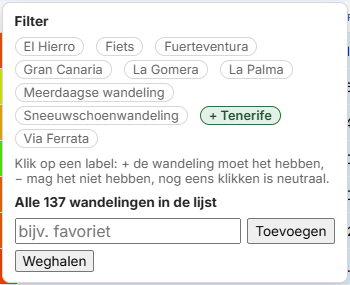
- The area: in Walk sets → ⚙ choose the country and region, or zoom the map to your holiday area. Everything outside the view drops out of the list.
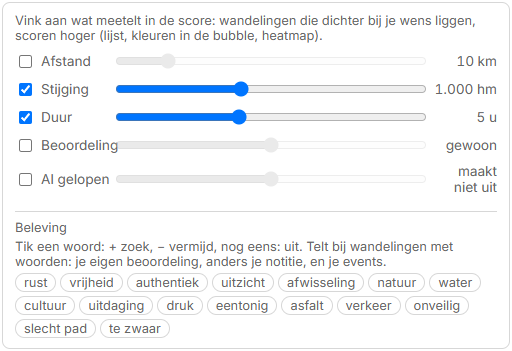
- Your wishes: open 🎯 Preferences, tick Distance and set it to 15 km, tick Ascent and set it to 800 m. Every walk gets a score: the closer to your wishes, the higher. The list, the colours and the heatmap follow at once.
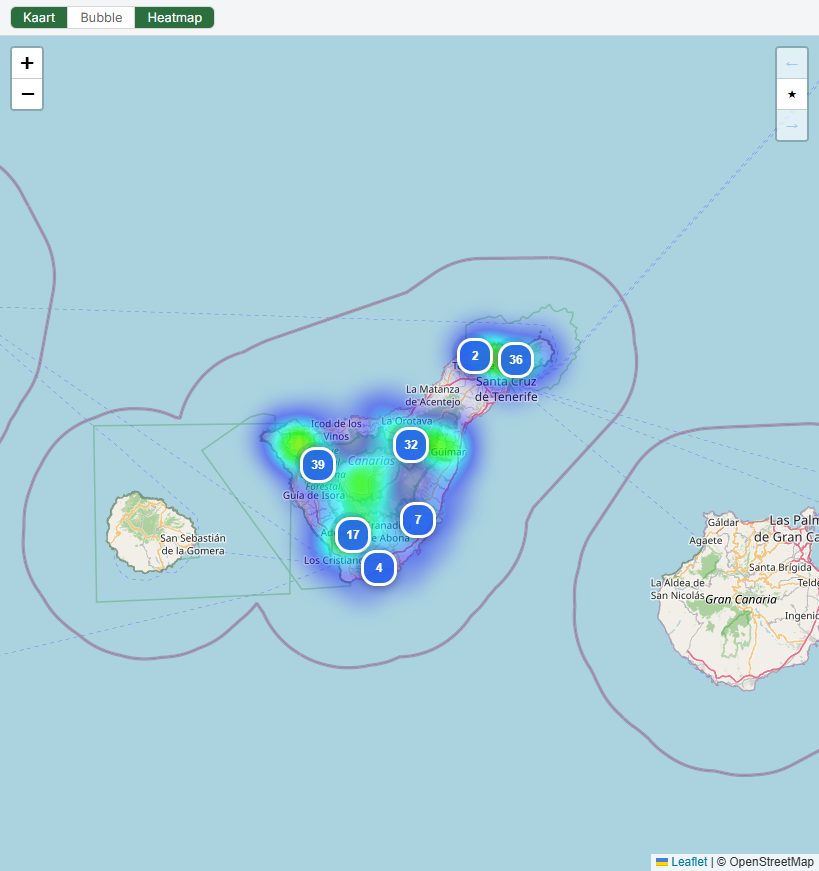
- Where are the good walks? Choose Heatmap above the map. Warm spots are areas with many well fitting walks. Zoom in there.
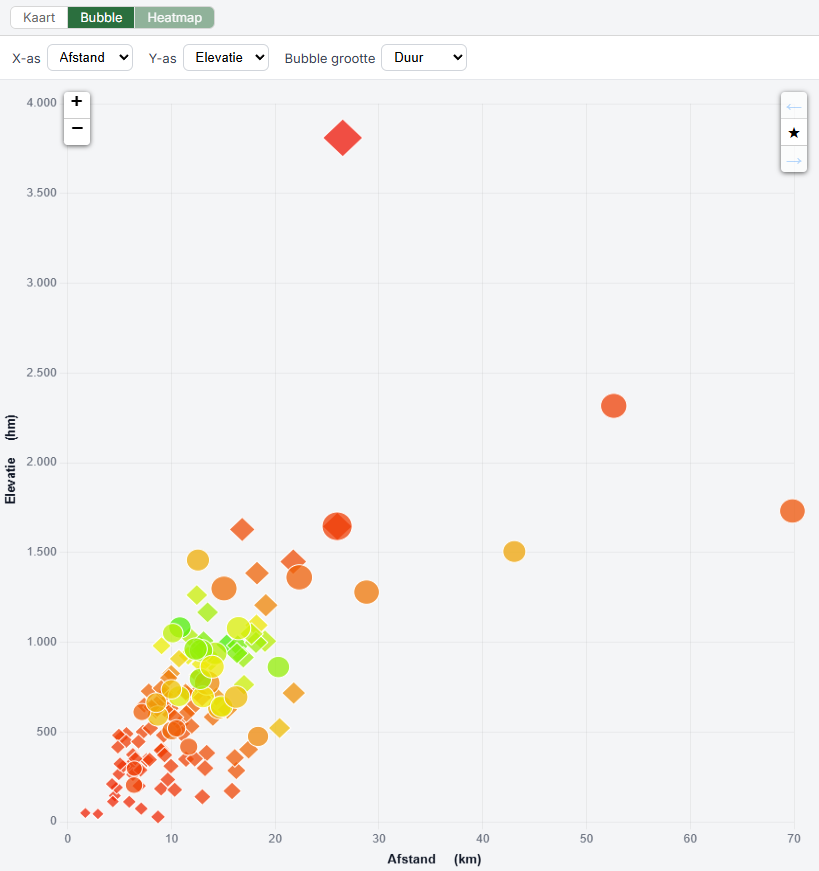
- Comparing in the bubble: choose Bubble. Set for example X to Distance, Y to Elevation and the size to Duration. The colour is the score: green fits well, red less. Move a preference and see the colours move along. Click a bubble to open that walk.
- The list: sort on Score (top column). Look at the details of the best candidates: elevation profile, duration, photos, estimated kcal.
- A shortlist with labels:
- Per walk: in Details, tab Rating, add a label, for example
Tenerife 2027. - Or for a whole group at once: make sure exactly those walks are in the list (zoom, filters), open 🏷 Labels and add the label under All n walks in the list.
- Per walk: in Details, tab Rating, add a label, for example
- Only your shortlist: in 🏷 Labels click the label until it says
+ Tenerife 2027. Clicking again gives− Tenerife 2027(just without that label, for example− Bike), and then neutral again. Labels can be combined:+ Tenerife 2027and+ with the doggives only walks with both. - Saving: save the workspace as
Tenerife 2027. On the way you open it and choose a walk per day with Go ▶.
5. Use case 3: analysing a training and calibrating the cross trainer
Example: on the cross trainer you walked the stretch Naar de top van Kos (to the top of Kos), a 1.8 km piece of the walk Antimachia - Zia with gradients up to 30 %. You also really walked that walk, with GPS. Now you want to look back on the training and make sure the cross trainer from now on moves over the route as fast as you do in reality.
Beforehand: the training in Go
- Make the stretch in Explore: open the walk, tab Route, New stretch, choose the start and end on the elevation profile and click Save.
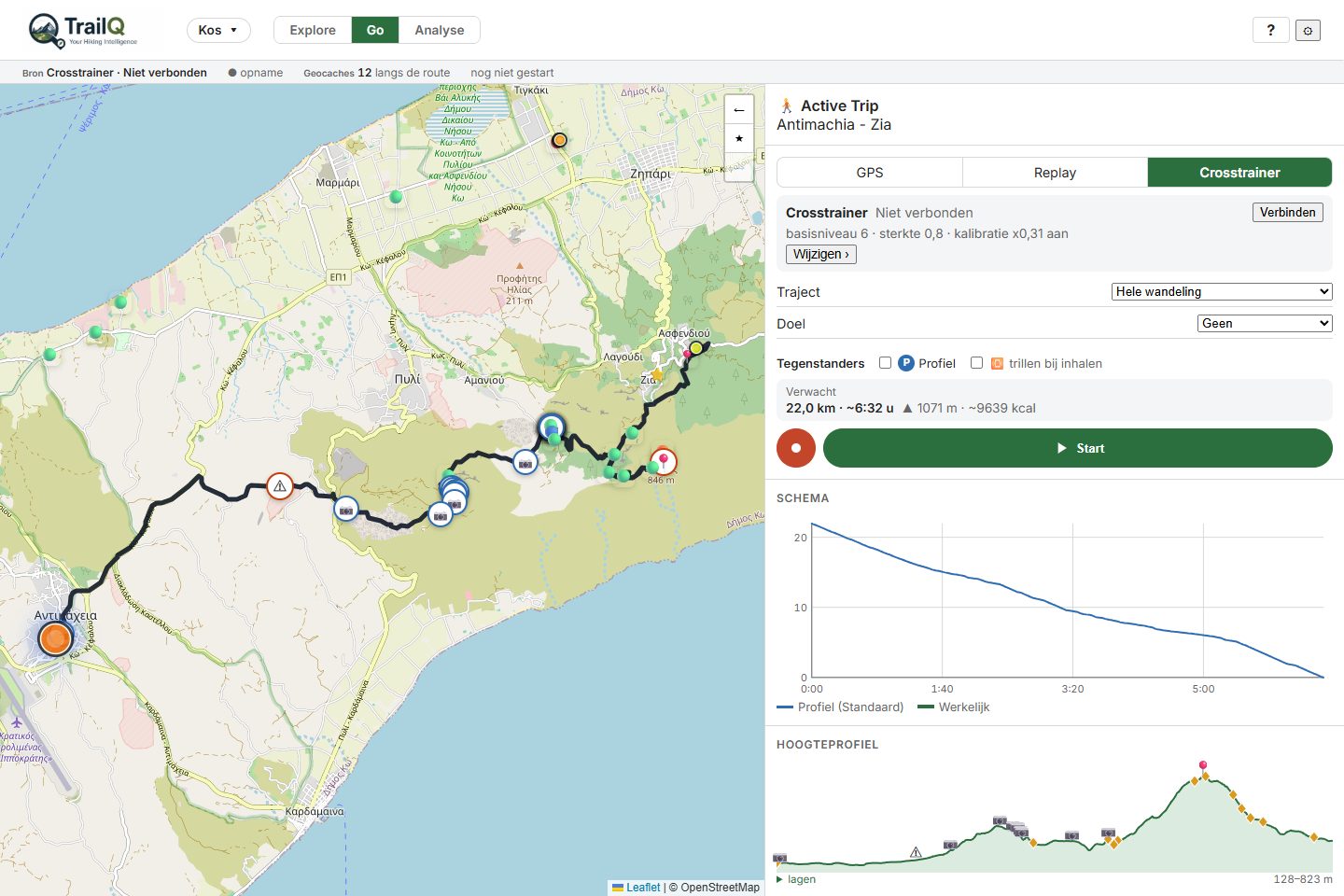
- In Go there is a checklist before the start. Choose Cross trainer at the top and click Connect in the card below. That works in Chrome with Bluetooth, on the laptop itself (
localhost) or over HTTPS. - The card sums up the settings, for example base level 6 · strength 0.8 · calibration x0.31 on. With Change › you adjust them: Base level and Strength decide how strongly the resistance follows the gradient.
- Choose a Stretch, optionally a Goal and opponents. Under Expected you see the distance, time, ascent and kcal of the ride.
- Leave ⏺ on and start with Start. On the way ⏸ ⏹ and + event here are at the top, below them distance, time, speed and how far you are ahead or behind. On the phone you find the elevation profile and On the way on the Route screen; the Android back button goes back to the previous screen.
- Stopping: tap ⏹; the button becomes Stop? and a second tap within 3 seconds stops. TrailQ then keeps the training as a session and opens Analyse with that session. A ride shorter than 100 m or 1 minute is not kept.
Looking back on the session
At the top of Analyse are the Sessions: the sessions of the chosen walk, or with All all sessions, newest first. Open a session for:
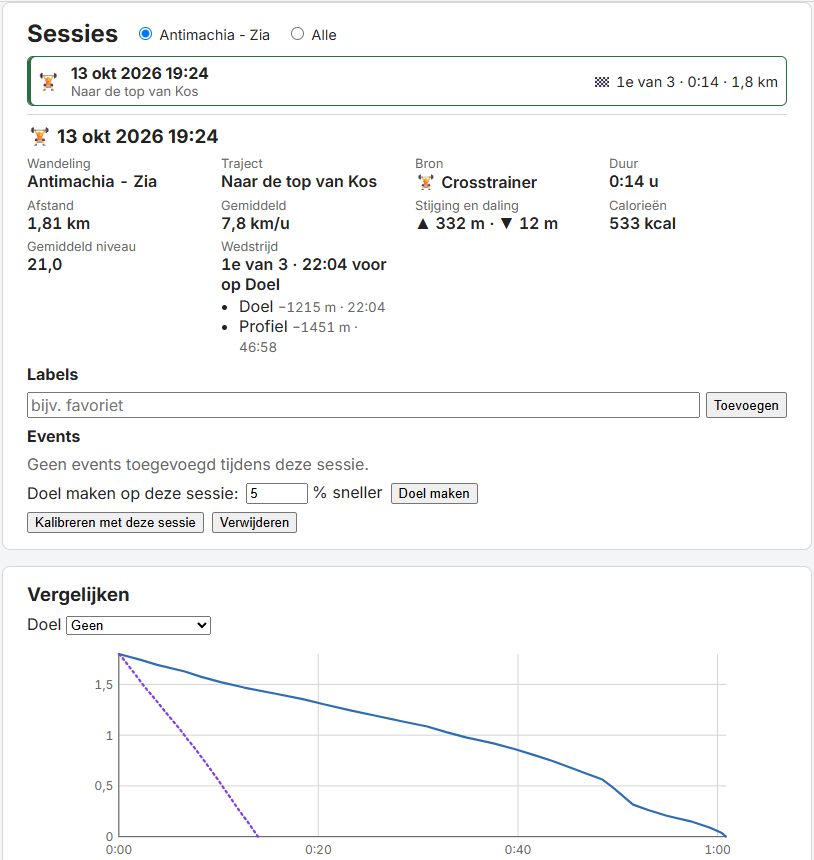
- The figures: stretch, source (🏋 cross trainer or 📍 GPS), duration without breaks, distance, average speed, ascent and descent, calories (on the cross trainer from the console) and the average level.
- Race: if opponents raced along, you see your place and your lead or gap to each opponent, for example 1st of 3 · 22:04 ahead of Goal. In the list it shows briefly as 🏁 1st of 3.
- Labels and events: add labels to filter on later, and the events you made on the way.
- Make a goal on this session: for example 5 % faster than this time. You choose that goal next time in Go under Goal.
- Calibrate with this session (cross trainer only, see below) and Delete.
Comparing and goals
- Compare lays the schedules (remaining distance against time) of the last 5 sessions and the best one on top of each other, with the chosen goal. The blue line Profile is always there: that is how long it takes you according to your duration profile, given the gradients of this piece. If you choose a goal on a duration profile, such as Bergwandeling −5 %, it is Bergwandeling without the 5 %; otherwise the workspace's duration profile. The table gives per session the duration, km/h, kcal, level, heart rate and the difference with the best.
- Totals per month: number of sessions, km, time, ascent and kcal.
- Goal profiles: a goal on a duration profile (Walking −5 %, for every walk) or on a session (only that walk or stretch). You also delete them here.
Why calibrate?
The cross trainer measures a speed, but it says little about walking. In the example the console reported 1.81 km in 14 minutes, on average 7.8 km/h, uphill at 15 to 30 %. You do not walk such a slope that fast. Without calibration the position on the route follows the cross trainer 1 to 1. So the stretch is finished far too soon and you win every race by a wide margin. Calibrating converts the cross trainer's speed into walking pace, per gradient.
Calibrating
- In Explore choose the walk of the training (here Antimachia - Zia) and go to Analyse.
- Right after a cross trainer session of at least 1 km Analyse asks: Use this cross trainer session for the calibration?, with your current calibration. Choose Calibrate or Not now. Later it is always possible with Calibrate with this session at a session. The training's log is in the session; TrailQ chooses the session's walk first if needed and calculates at once.
- Per gradient of 5 % TrailQ compares the cross trainer's speed with a reference:
- Compared with your own recording of this route: the walk's GPX has times (your own recording); TrailQ takes your real walking pace from it, without breaks.
- Compared with the workspace's duration profile: no times in the GPX; then the pace of your duration profile counts.
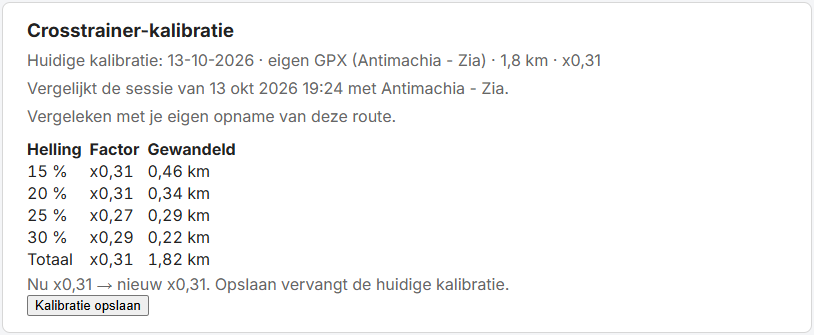
- Per gradient you see the factor and how many km were walked. In the example:
x0.31 means: 1 km on the cross trainer is 0.31 km of walking. Gradients with less than 0.2 km of data get the factor of the nearest gradients with data. You must have walked at least 1 km of the route.
Gradient Factor Walked 15 % x0.31 0.46 km 20 % x0.31 0.34 km 25 % x0.27 0.29 km 30 % x0.29 0.22 km Total x0.31 1.82 km - Below the table is the old and new total factor, for example Now x0.31 → new x0.29. Nothing changes until you click Save calibration. There is one calibration; a new one replaces the previous one (TrailQ keeps the previous one as a backup). Analyse and the status bar then show for example Cross trainer calibration 13-10-2026 · own GPX (Antimachia - Zia) · 1.8 km · x0.31.
Applying the calibration
- In Go you choose the cross trainer as the source and tap Change on the source card; there is Use calibration, on by default. The card itself shows calibration x0.31 on/off. The position on the route then moves with cross trainer speed × factor of the gradient you are on at that moment. If you switch it off, it goes 1 to 1 again.
- The calibration belongs to the Base level and Strength you trained with (here base 6, strength 0.8): heavier resistance makes you slower on the cross trainer. If you deviate from them, TrailQ warns with ⚠. Calibrate again then with a training at the new setting.
- Also calibrate again when you get fitter or use another cross trainer. A longer training with many different gradients gives a better calibration.
What do you notice?
| Without calibration | With calibration (x0.31) | |
|---|---|---|
| Pace over the route | 7.8 km/h, as the console reports | about 2.4 km/h, your walking pace on these gradients |
| Time for the stretch (1.8 km) | 14 minutes | about 45 minutes, as you really walk it |
| Schedule, goal and opponents | you are far ahead; the race says nothing (22:04 ahead of Goal) | a fair comparison with your duration profile, your goal and your GPS sessions |
| Resistance | in both cases follows the gradient where you are on the route; with calibration you are longer on each gradient, so you also train longer on it | |
| Calories | in both cases from the console | |
A calibration does not change sessions saved earlier: they keep the distance and time they were recorded with. A session from before calibrating is therefore much faster than one after it; keep that in mind with Compare and with a goal on a session.
6. Use case 4: training on the cross trainer (finding a stretch)
Example: tonight you want 45 minutes on the cross trainer, with plenty of climbing, over a route you know from your holiday on Kos.
Finding a stretch
- Which walks? Open the workspace with the walks you want to choose from, for example
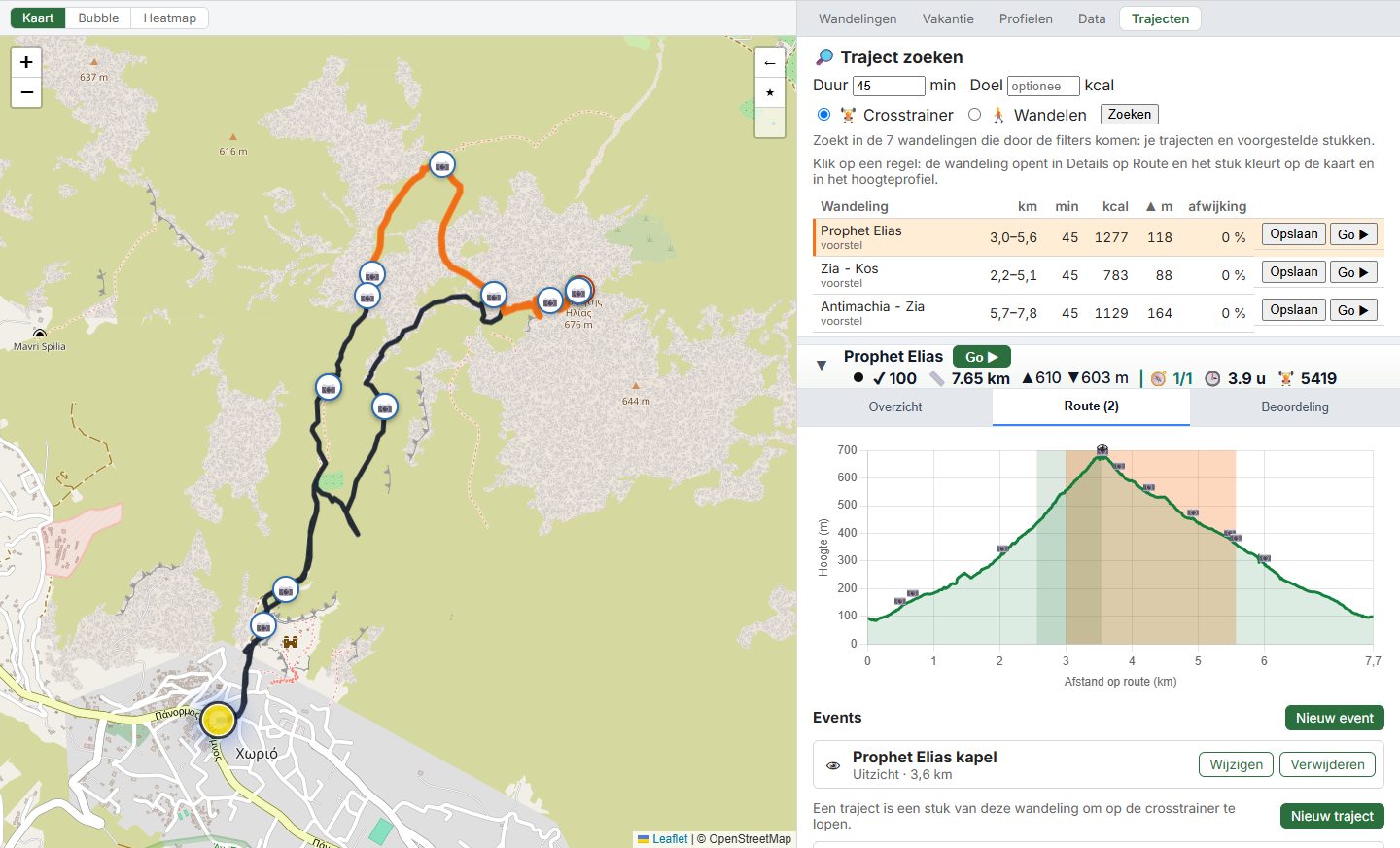
Kos. TrailQ searches the walks that pass the list's filters (Walks → Filter: labels, sessions), not only what is on the map. Bike routes do not count. - Choose the Stretches tab next to Walks. Fill in: Duration 45 min, optionally a Goal in kcal, and choose 🏋 Cross trainer. Click Search.
- You get a list of the best pieces: walk, km from–to, minutes, kcal, ascent and the deviation from what you asked. Rows with 📌 are your own stretches; suggestion is a piece TrailQ suggests (at most 3 per walk, at least 0.5 km apart). With an equal deviation the piece with more kcal or climbing is on top.
- Looking: click a row. The walk opens in Details on Route, and the piece is coloured orange on the map and as a band in the elevation profile. You see at once how steep it is; the cross trainer's resistance will follow those gradients.
- Saving: Save turns a suggestion into a stretch with a suggested name, such as Klim 3,1–7,4 km. You give it a better name in Route → Change.
- Starting: Go ▶ chooses the walk, the cross trainer and this stretch, and goes to Go. There you connect the cross trainer and start, as in use case 3.
How TrailQ estimates the minutes and kcal
- Minutes: the walking time of the piece according to your duration profile, without breaks. With the calibration on (use case 3) the ride on the cross trainer takes about that long.
- kcal on the cross trainer: learned from your own cross trainer sessions, per gradient of 5 %. If you have not trained on a gradient yet, TrailQ takes the nearest gradient with data and scales it by how hard that gradient is to walk; flat and downhill then cost about a third of a 15 % gradient. Without sessions it says not enough sessions yet.
- Note: the console's kcal seem too high for now. Use them to compare stretches, not as real consumption.
- If you choose 🚶 Walking, TrailQ calculates with walking pace and walking kcal (that needs your weight, under ⚙).
Maintaining your stretches
- In Details → Route are the stretches of a walk. Click a stretch (not the buttons) and it is coloured orange on the map and profile; clicking again removes it. New stretch makes one yourself: you choose the start and end on the elevation profile.
- If you delete a stretch that has sessions or goals, TrailQ says so first. Those sessions keep the name, but the piece of the route is gone.
7. Use case 5: using labels, events and experience
TrailQ has three ways to record something with a walk. They look alike, but they are for different things. The rule of thumb:
| Label | Event | Experience | |
|---|---|---|---|
| What | A word with the whole walk | A point or piece of the route, with a kind: 👁 View, 💧 Water, 🪑 Resting place, ⚠ Caution, 📍 Other | Stars (1–5) and words: green what made it worth it, red what bothered you |
| Where you make it | Details → Rating → + label, or for the whole list through 🏷 Labels | Details → Route → New event, or on the way in Go with + event here | Details → Rating, or after a session at How was it? |
| What TrailQ does with it | Filtering (Filter → 🏷 Labels, + must have, − must not) | An icon on the elevation profile, a piece as a band; in Go you see what is coming; view, water and caution give a suggestion for the experience | Your stars count in the score; they are shown with similar to; the words make up your experience profile |
| Applies to | The walk, in every workspace. The workspace only keeps which label filter is on. | ||
Labels: ordering and filtering
- Good: plans and shortlists (
Tenerife 2027,still to do), conditions you want to use when choosing (with the dog,by public transport,cross trainer). - Keep them short and few: rather 5 labels you really use than 30. Always use the same spelling; the suggestions at + label help with that.
- A whole group at once: make sure exactly those walks are in the list (zoom, filters), open 🏷 Labels and add the label under All n walks in the list.
- Not for your judgement (
beautiful,boring): that is experience, and then it counts. Not for something at one spot (bench at km 4): that is an event. - A session can also get labels (in Analyse), for example
intervalorafter illness.
Events: what is on the route
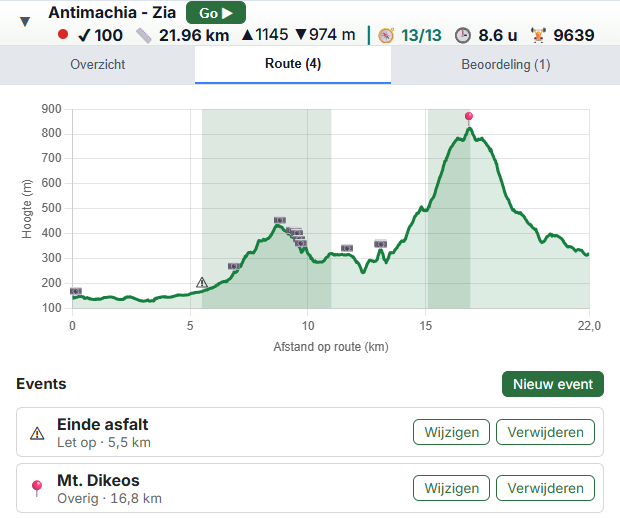
- Good: concrete and for next time: 👁 View of the Teide, 💧 Spring, drinkable, 🪑 Bench in the shade, ⚠ Muddy after rain (as a piece of route). Choose the right kind: then you can switch kinds on and off and the suggestion for your experience is right.
- On the way is easiest: in Go you tap + event here, choose the kind and optionally the words you feel now. Then there is nothing to look up afterwards.
- Use ⚠ Caution for everything you want to know beforehand next time: a tricky descent, a closed path, a loose dog.
Experience: what it was worth to you
- Shortly after the walk is best: stars and two or three words that really mattered. After a recorded session Analyse asks for it itself.
- Use the whole scale. ★★★ is an ordinary good walk; keep ★★★★★ for the real highlights. If you give four stars everywhere, TrailQ sees no difference.
- Be honest with the red words (asphalt, busy, monotonous). Those are exactly what makes your experience profile useful.
- Suggestions are dotted: words from your note and from your events, and your Obsidian review as stars. They only count when you tap them or choose Take the suggestions.
- What it gives:
- Your own stars count in the score instead of the review (★★★ as 7.2, ★★★★ as 8, ★★★★★ as 9).
- With similar to in Details you see the stars of own walks that resemble this one: a quick reminder whether something like it suits you.
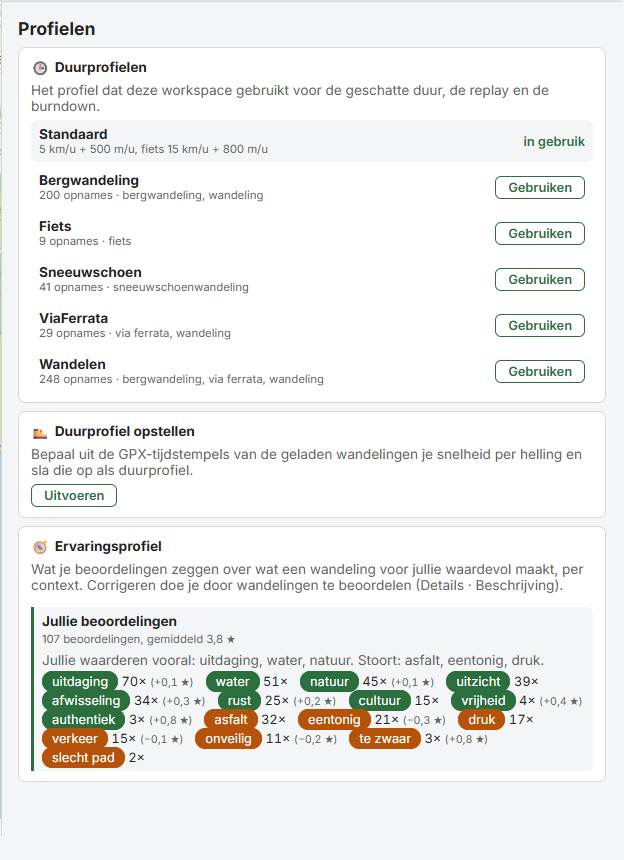
- Under Profiles → Experience profile is what you value and what bothers you, for example You value most: challenge, water, nature.
- Your words count in the score when you look for or avoid them in 🎯 Preferences under Experience. For walks you do not know TrailQ predicts nothing yet (see chapter 9). The more you rate now, the better that will work later.
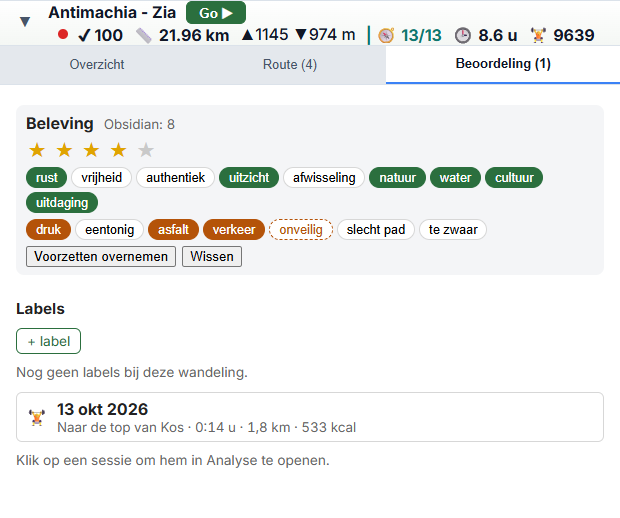
The experience words themselves (rust, uitzicht, asfalt …) are Dutch: TrailQ reads them from your Dutch notes, and your own texts are not translated.
8. Use case 6: planning a walking holiday
Example: the Kerstvakantie La Palma (Christmas holiday La Palma), ten days from 17 December, with an apartment in Tazacorte. TrailQ looks for a walk per day that fits your wishes and lies within a reasonable driving time of your place to stay, and makes a report of it to take along.
Beforehand
- A workspace with the walks of the island, and the list as you want it: for example 🏷 Labels on
+ La Palma, your 🎯 Preferences and optionally a duration profile (use cases 1 and 2). The holiday uses exactly the walks and scores of the list. - For real driving times: a free key from openrouteservice.org under ⚙. Without a key TrailQ estimates the driving time (≈); in the mountains that can differ a lot.
1. Place to stay
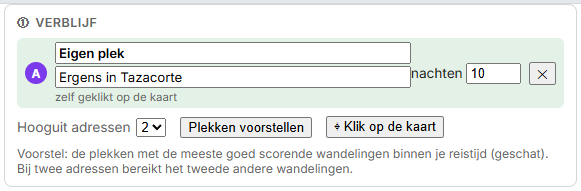
Choose the Holiday tab and give the holiday a name, the first day and the number of days. Under Place to stay you choose how many addresses you want (At most addresses) and then:
- Suggest spots: the spots from which most well scoring walks lie within your travel time. Choose takes one over.
- or ⌖ Click on the map and click your hotel or apartment.
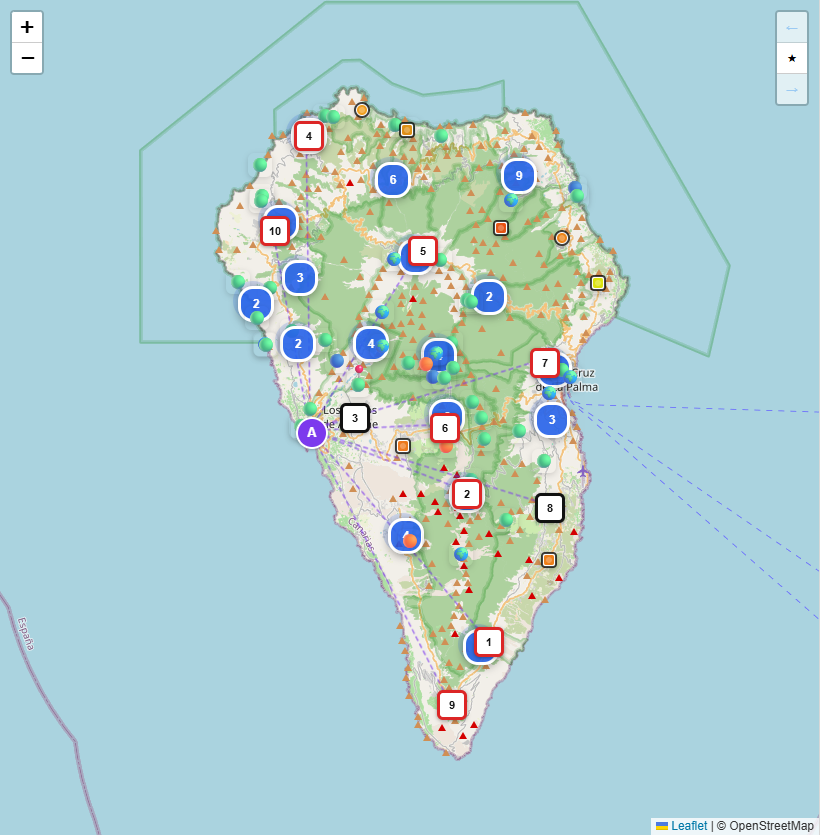
Give the place to stay a name and, if you like, the address; it goes into the report. Divide the nights. On the map every place to stay is a purple letter (A, B).
2. Wishes
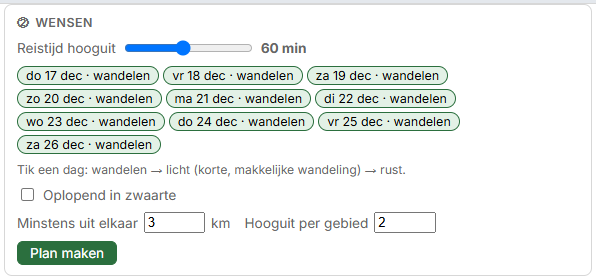
- Travel time at most: the longest drive from the place to stay to the start. This is a hard limit.
- The days: tap a day to switch between walking, light (a short, easy walk) and rest.
- Rising in difficulty: the lighter walks at the start, the hardest at the end. It excludes nothing, it only orders.
- At least apart and At most per area: for variety. These are guidelines, not hard rules: a walk close to another day, or in an area that is already full, gets penalty points (up to 20). A much better walk still gets in.
- Do you prefer new walks to what you walked before? You do not set that here, but in the score: the wish Walked before in 🎯 Preferences. The plan then chooses more new ones by itself.
3. Making the plan
Click Make plan. TrailQ asks for the driving times (a task in the task list) and chooses the walks with the highest score minus the penalty points; with several places to stay they are planned together, and a walk much quicker to reach from another place goes to that place.
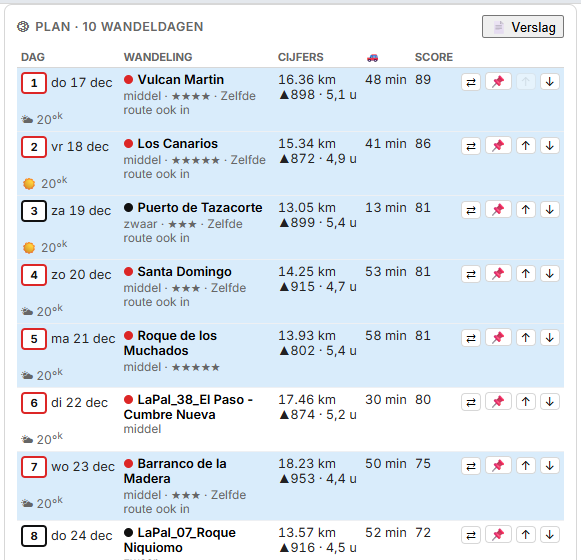
Per day you see the date, the place to stay, the weather, the walk with difficulty, stars and experience, the distance, the ascent, the duration, the driving time and the score. Click a walk to look at it in Details.
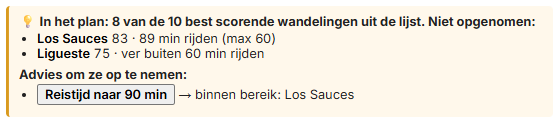
4. Why not the best walks?
Below the plan it says which walks from the top of your list are not in the plan, and why: too far to drive, too close to another day, or the days from that place already have better walks. With advice to get them in, and a button to do it at once:
- Travel time to … min: raises your travel time. Then choose Make plan again.
- Add a place to stay near …: a second place to stay from which the walks that were too far can be reached. The plan then starts again.
5. Adjusting
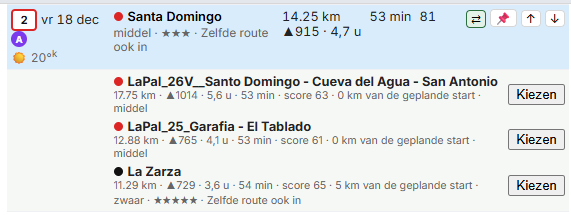
- ⇄ shows the three best alternatives for that day, with their score: walks near the planned start and of about the same length. Choose takes one over and pins the day. If it says close to day 3 (−39 variation), that walk loses points because it is close to another day; that is why it is not in the plan, even though it scores higher.
- 📌 pins a day: it stays when you plan again.
- ↑ ↓ moves a walk a day, for example to a day with better weather.
6. The weather
With a first day, every day shows the weather at the place to stay: the forecast when the day is within about two weeks, otherwise the climate (c): the average of the same days over the past ten years, with the chance of rain. 🔄 Update weather under the plan fetches the forecast again; that is only possible once a day is within 15 days, before that the climate applies. When a hard (black) walk falls on a day with bad weather (thunder, snow, rain, 30° or more), a red warning shows, in the report too.
7. The report
📄 Report makes a document over the app; with Print or save as PDF you choose a printer or Save as PDF. It consists of:
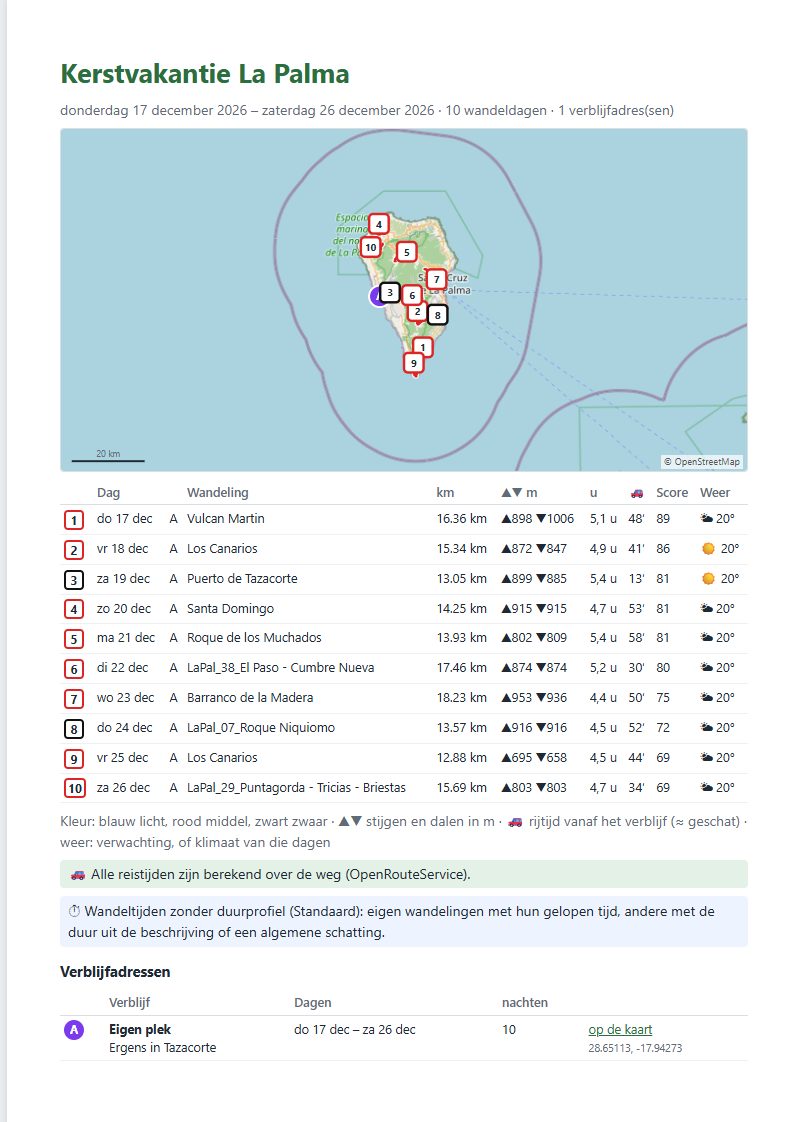
- The cover: a map with the days, the table of the days (with ▲▼ ascent and descent, the driving time, the score and the weather), whether the driving times are calculated or estimated, which duration profile the walking times are based on, and the addresses of the places to stay with a link to the map.
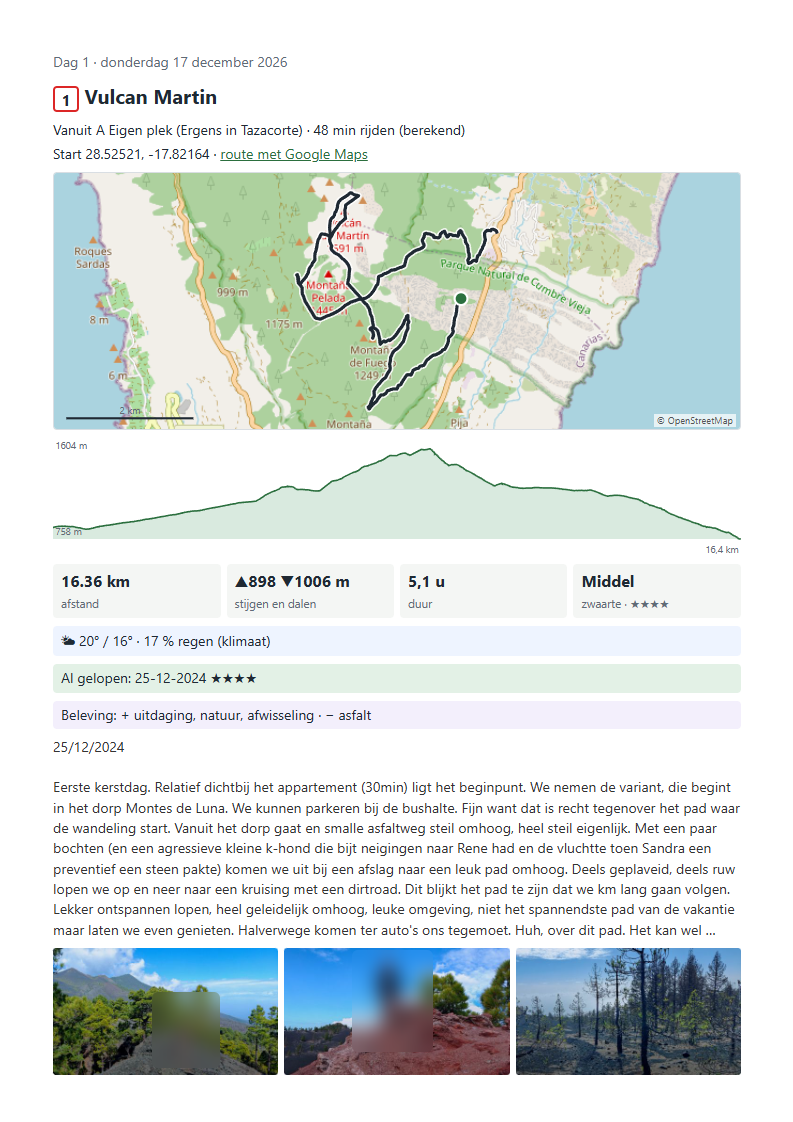
- A page per day: the route on the map, the elevation profile, the figures with the weather, the driving time with a link to the route in Google Maps, your Caution events, when you walked it before with the experience, as much of the description as fits, and three photos.
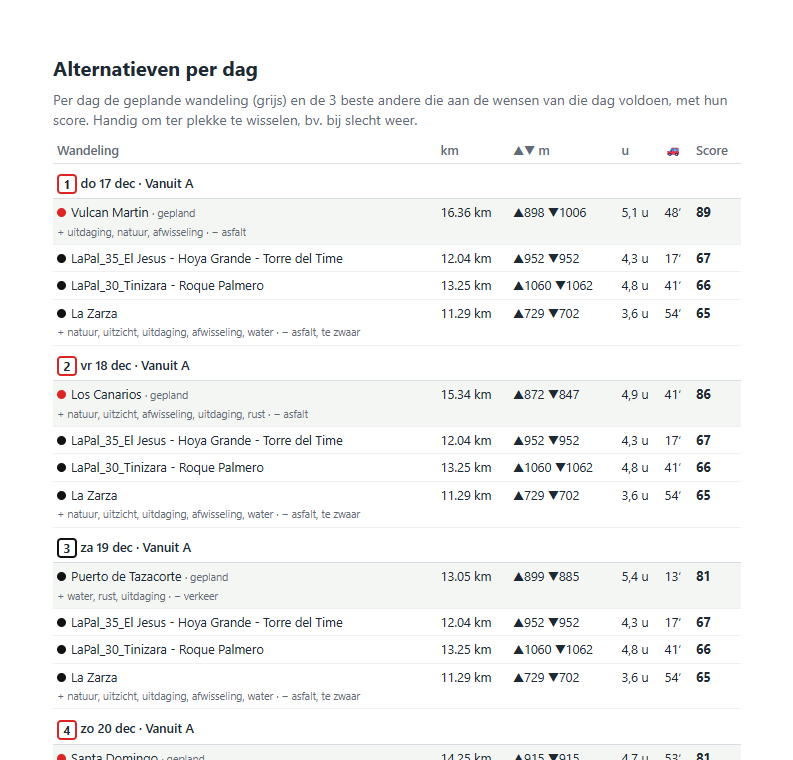
- A last page with the alternatives per day, with their score: handy for swapping on the spot, for example in bad weather.
8. Saving
Save the workspace: the holiday with the plan, the places to stay and the pinned days belongs to it. TrailQ keeps the driving times and the weather separately, so opening it again is quick. When you open TrailQ later, the workspace you used last opens at once.
9. How TrailQ judges walks and learns
TrailQ looks at a walk in three ways: what the route is (measured on import), what you want (your preferences) and what you experience (your ratings). Below, per part, where it comes from and where you see it.
What TrailQ measures on import
| Part | Where it comes from | Where you see it |
|---|---|---|
| Duration | With Default: for own walks the real time from the GPX (without ~), otherwise an estimate. With a chosen duration profile: everything estimated with your pace per gradient (with ~). | List, Details, bubble |
| Difficulty | Which part of the route is steeper than 15 and 25 %; for own walks also how slow you were on steep pieces (terrain). A via ferrata is always hard. | Coloured circle, explanation in the tooltip |
| Quality | Few points, separate pieces, a car ride or lift, gaps in time, standing still, elevation, a planned route, photos. | Details, Data → Walk quality |
| Review and words | From your Obsidian note: the review (0–10) and words from the text (such as uitzicht, view, and asfalt, asphalt). "Weinig tot geen asfalt" (little to no asphalt) and "mocht je het te zwaar vinden" (should you find it too hard) do not count. | Details → Experience (as a suggestion) |
Data quality: finding and repairing bad stretches
- Data → Walk quality lists the walks per finding. Click a walk: it opens, and the bad stretch is shown in orange on the map and in the profile. In Details the ⚠ labels are buttons that do the same.
- 🔄 Measure again at the top of the overview measures all loaded walks again from their GPX, without an import (this may take some minutes; the progress is in the status bar).
- Next to car ride, standing still and rough GPS in Details is a 🛠: a preview of what is removed or smoothed, then Save. The GPX is repaired in TrailQ and in the source (when found), the original is kept as
.gpx.orig, and the walk is measured again. - After repairs, recompute your duration profiles with 🔄 under Profiles: they are learned again from the same walks.
What you want: the score
The score (0–100, the colour in the list, bubble and heatmap) comes from your 🎯 Preferences: how close a walk is to your wish for distance, ascent and duration, your review, and the geocaches along the route. Without ticked preferences mainly the review counts. If you rated a walk yourself with stars, those stars count instead of the review (★★★ as 7.2, ★★★★ as 8, ★★★★★ as 9). Next to other wishes the rating counts only a little; with the wish Rating in 🎯 Preferences you set with the slider how strongly (little … very much). Quality does not count.
With the wish Walked before in 🎯 Preferences you choose between new and known: a walk you walked before (or a route you walked before) then gets −25, −12, 0, +8 or +15 points. Own walks often score high because of your ratings; with new new walks get a chance, in the list and in the holiday planning.
Experience as a wish: at the bottom of 🎯 Preferences are the experience words. Tap a word for + look for (green), again for − avoid (red), again for off. Walks with the words you look for score higher, with words you avoid lower. A walk's words are those of your own rating, otherwise those from your note, plus those of your events. So it works mainly for your own walks: downloaded walks have no words (yet) and get a neutral value. Handy for questions like which of my walks here had water and little asphalt?
What you experience: rating
- In Details under Rating you rate a walk with stars and words: green what made it worth it, red what bothered you. Every tap is saved at once.
- The suggestions are dotted: words from your note and from your events on the way, and for own walks your review as stars (7–7.4 = ★★★, 7.5–8.4 = ★★★★, from 8.5 = ★★★★★). They only count when you tap them or choose Take the suggestions.
- After a recorded session Analyse asks How was it?; words you tapped on the way at + event here are ready then.
- Under Profiles → Experience profile you take over the reviews and words of all your own walks at once (Take over reviews and words). Your own ratings stay.
What TrailQ learns from it: the experience profile
- You see how many ratings there are, the average number of stars and a summary such as "You value most: quiet, views. Bothers you: asphalt." A word counts from two ratings.
- Provisional picture from your notes (dotted): which words in your notes go with a higher or lower review. Note: that is going together, not a judgement. A word in a note often only describes what you saw, and differences smaller than 0.15 are not shown. It does not count in your profile.
- Similar to: in Details three own walks that most resemble this one (distance, ascent, difficulty, location), with their stars and review. Handy as a reminder when choosing.
What is not possible (yet)
TrailQ does not predict yet how much you will like walks you do not know. In a test on 347 own walks "similar to" did recognise the less good walks somewhat, but hardly your favourites. Whether a walk becomes a 9 or an 8 is in the experience: coast, ancient forest, narrow paths, villages. To recognise that in new walks, TrailQ first has to get to know the surroundings of a route, for example from OpenStreetMap. That is the next step.
10. Terms
| Term | Explanation |
|---|---|
| Dataset | A collection of walks from one import, for example Dolomites. |
| Workspace | Your working set: which datasets are loaded, the map view, filters, preferences and duration profile. |
| Score | 0–100 per walk: the rating, the geocaches along the route and how well distance, ascent and duration fit your preferences. |
| Duration profile | Your pace per gradient, from your own recordings. It decides the estimated duration, the Replay and the schedule in Go. With Default (no profile chosen) own walks with times in the GPX show their real walking time; all other times are an estimate and have a ~. If you choose a profile, everything is estimated with that profile. After importing a dataset the real times are known. |
| Label | A free word with a walk or session, such as favourite or Tenerife 2027. For filtering. |
| Event | A note of your own at a spot or piece of the route, such as beautiful view or muddy. |
| Holiday | A plan per day in a workspace: places to stay, wishes, per day a walk with driving time and weather, and a report (use case 6). |
| Stretch | A piece of a walk, for example to walk on the cross trainer. |
| Session | One time a walk or stretch done, with GPS or on the cross trainer. To look back on in Analyse. |
| Goal profile | A goal to walk against, such as 5 % faster than your duration profile or 5 % faster than a session. A line in the schedule and an opponent in Go. |
| Opponent | A virtual walker in Go: your goal, your duration profile, your best session or an earlier session. The result goes with the session. |
| Calibration | The conversion of cross trainer speed into walking pace, per gradient (factor). Made in Analyse, used in Go. |
| Experience | Your judgement of a walk: stars and words such as rust (quiet), uitzicht (view), asfalt (asphalt) or druk (busy). In Details under Rating, and after a recorded session with the question How was it?. Words from your note and from your events on the way are there as suggestions (dotted), and for own walks your Obsidian review as light stars (for example Obsidian: 9 → ★★★★★): tap them or choose Take the suggestions. Under Profiles → Experience profile you take over the reviews and words of all your own walks at once. On the way you can tap the same words at + event here. |
| Similar to | In Details under Overview: three own walks that most resemble this one (distance, ascent, difficulty, location), with their stars and review. A reminder, not a prediction: whether a walk becomes a 9 or an 8 is mainly in the experience, and TrailQ cannot measure that yet. |
| Experience profile | Under Profiles: what your ratings say, for example You value most: quiet, views. Bothers you: asphalt. Below it a provisional picture from your notes: which words go with a higher or lower review. That only counts once you rate walks. |
| Quality | 0–100 per walk: how usable the data are. Lower because of, for example, few points in the GPX, separate pieces, a car ride or lift, a gap in time, standing still at the start or end, missing elevation, a planned route or no photos. See Details and Data → Walk quality. Does not count in the score. |
| Difficulty | The coloured circle: blue easy, red medium, black hard. How steep the route is (the part steeper than 15 and 25 %) and, for own walks, how slow you were on steep pieces. Apart from the length: a long flat walk is easy. |
| kcal | Estimated consumption. Needed for walking: your weight under ⚙. |
| Language | Dutch or English, chosen with NL / EN next to ?; kept in this browser. Your own texts (names, descriptions, notes) stay as they are. When a description is in another language than the app, 🌐 Translate to … is above it: Chrome (from version 138) translates it on your own computer, without an online service; Original shows the text again. The first time Chrome fetches the language model, which can take a while. With 🌐 Translate descriptions automatically under ⚙ it happens without the button, once Chrome has the language model. |
11. When it does not work
- The browser does not open or stays empty: check whether the black server window is still open and shows no error. Then go to http://localhost:5050 yourself.
- "python" is not recognised: Python is not installed (properly). Install it again and tick Add python.exe to PATH.
- Importing says "Ongeldige admin-token" (invalid admin token): the password in the import window is not the same as the content of
trailq_token.txt. Did you just make that file? Then restart the server. - Calibrating says "Too little of the route walked": the training must cover at least 1 km of the route. If it says "Choose the route of the training first", first choose the walk you trained on in Explore.
- The cross trainer does not connect: use Chrome, switch on Bluetooth and open TrailQ via
localhostor HTTPS. - No map background: the map tiles come from the internet (OpenStreetMap).
- The description is not translated automatically: translating only works in Chrome 138 or newer; in other browsers the 🌐 Translate to … button is grey. Check that 🌐 Translate descriptions automatically under ⚙ is on. The first time per language Chrome still has to fetch the language model: click the button once yourself and wait until it is done, after that it happens by itself. If there is no button, TrailQ takes the text to be in the app's language (a short or mixed text counts as Dutch). Notes that TrailQ itself adds to the text are not translated.
- Something looks old after an update: reload the page with Ctrl+Shift+R.